 Luttie
Color grading tools
Color Wheels
Tint the shadows, midtones and highlights separately — the tool behind teal-and-orange, warm highlights and most cinematic looks.
Color Wheels tint three tonal ranges independently: the Shadows, the Midtones and the Highlights. Warming the highlights while cooling the shadows, for instance, is the basis of most cinematic looks.
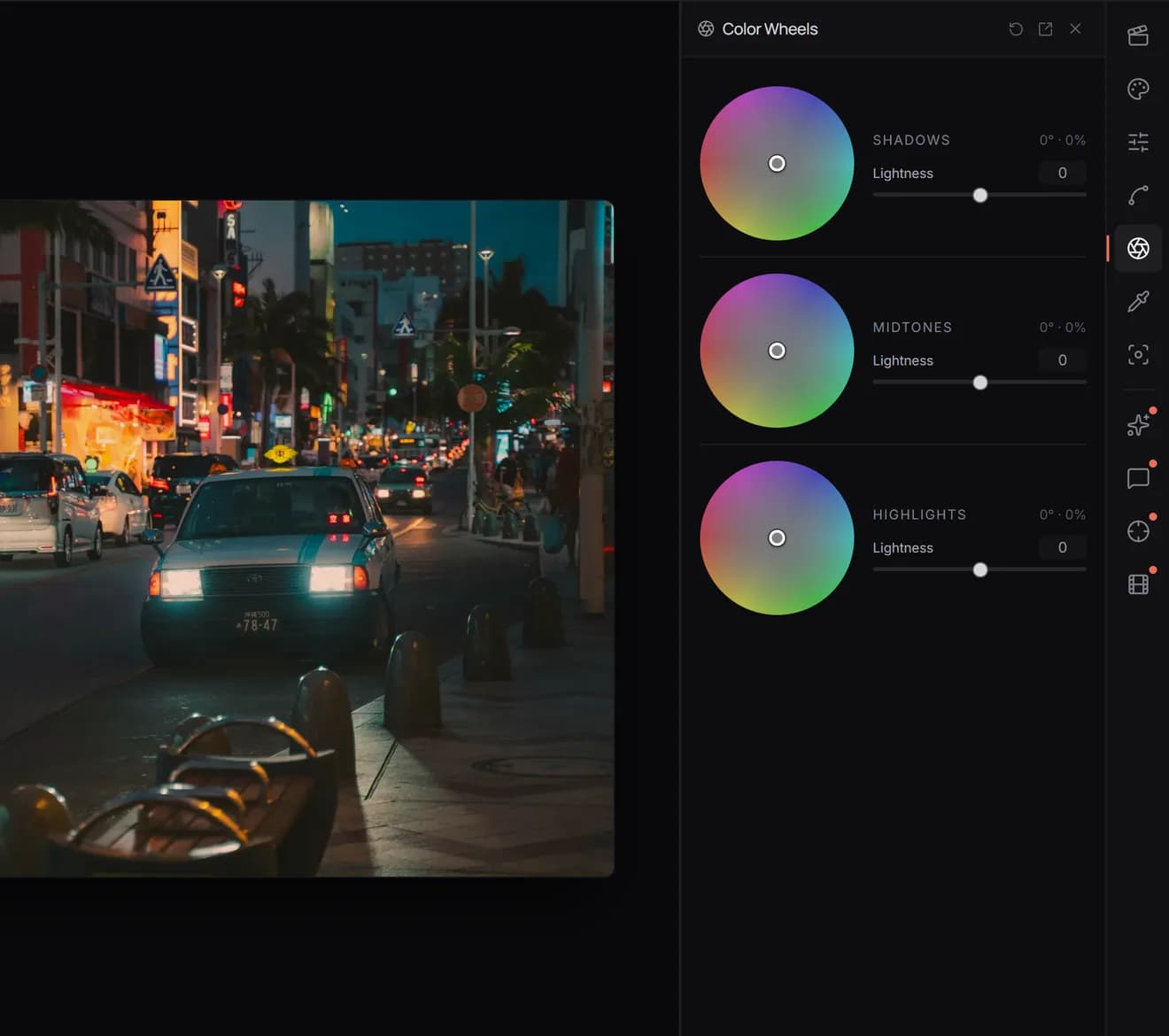
Using a wheel
- Drag inside a wheel toward a colour to tint that range toward it. The further from the centre, the stronger the tint.
- Hold Shift while dragging for finer control.
- Double-click a wheel to reset it.
- The readout under each wheel shows the hue in degrees and the amount as a percentage. Click it to type exact values.
- With a wheel focused, the arrow keys turn the hue (left/right) and change the amount (up/down). Add Shift for bigger steps.
Lightness, under each wheel, brightens or darkens that range without tinting it.
What each range affects
- Shadows: the darkest parts of the image. Tints here read as mood: blue for cold or night, green for unease.
- Midtones: most of the image, including most skin. Small moves go a long way.
- Highlights: the brightest parts. Warm highlights read as sunlight.
Two looks to try
- Teal and orange: Shadows toward cyan-blue, Highlights toward orange by about half as much. Leave Midtones alone so skin stays natural. More on this look.
- Golden hour: Highlights toward yellow-orange, Shadows held slightly blue. More on this look.
Keep moves small. A tint of a few percent is often enough; faces are the first thing to look wrong when a wheel goes too far.