 Luttie
Color grading tools
The editor
A tour of the editor's layout — the left sidebar, the canvas, the panel rail — and how to compare, undo and rearrange panels.
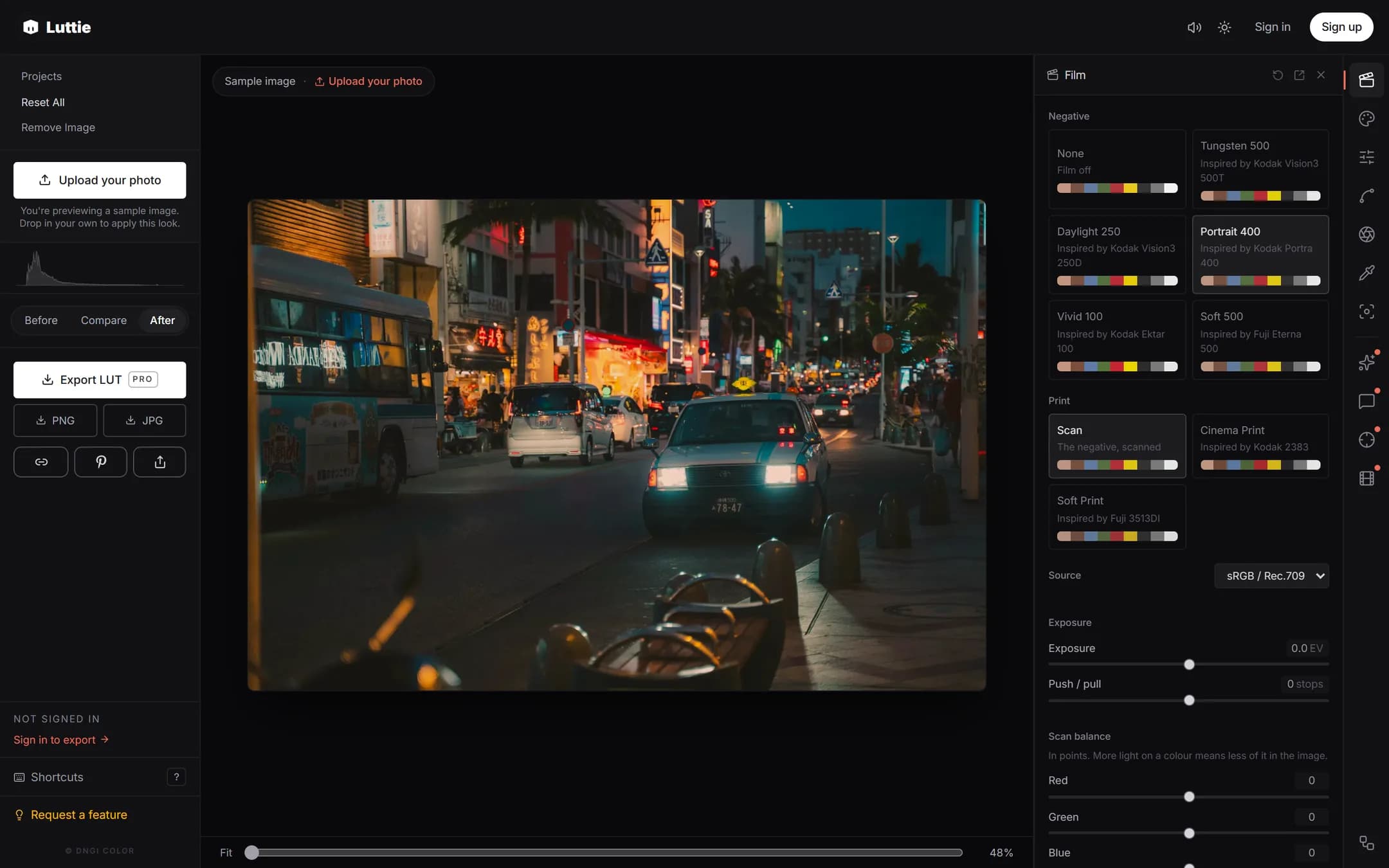
The left sidebar
From top to bottom:
- Projects: save and reopen grades. See Projects and presets.
- Upload your photo: load a photo, RAW file or video.
- Before / Compare / After: how the canvas shows your image. Before is the original, After is the grade, and Compare splits the two with a divider you can drag.
- Histogram: how the image's brightness is distributed, from shadows on the left to highlights on the right. A tall spike against either edge means detail is being clipped.
- Export: LUT, JPG and PNG, plus video controls when a clip is loaded, and buttons to copy a link to your grade or share it.
- Keyboard shortcuts, which you can also open by pressing ?.
The canvas
Your image, graded live. Under it:
- Zoom to inspect detail. Double-click the zoom control to fit the image again.
- Node graph, when Advanced mode is on, opens the grading chain. See The node graph.
- For RAW files, the camera and lens details.
The panel rail
The icons down the right edge open the grading panels, in this order:
- Film
- Creative: LUT presets and your own LUTs
- Basic Correction
- Curves
- Color Wheels
- HSL Secondary
- Vignette
Then the Pro tools: AI Grade, Grade Chat, Color Match and Film Effects. The last button, Advanced mode, adds the node graph under the canvas.
Click an icon to open its panel beside the rail. To work with two panels at once, drag a panel by its header to pop it out as a floating window, and drop it back on the dock to put it away.
Undo, reset and exact values
- Undo: Ctrl+Z (⌘Z on a Mac). Redo: Ctrl+Shift+Z or Ctrl+Y.
- Every panel has a reset button that returns just that panel to neutral.
- Click a slider's number to type an exact value.
The order of the panels in the rail isn't the order the grade is applied in. That's set in the node graph, and it's what your exports use.