 Luttie
Color grading tools
HSL Secondary
Select one range of colour — skin, sky, foliage — and change only that, without touching the rest of the image.
Most panels change the whole image. HSL Secondary changes one colour and leaves everything else alone: make the sky bluer without turning faces blue, or calm down a green cast on skin.
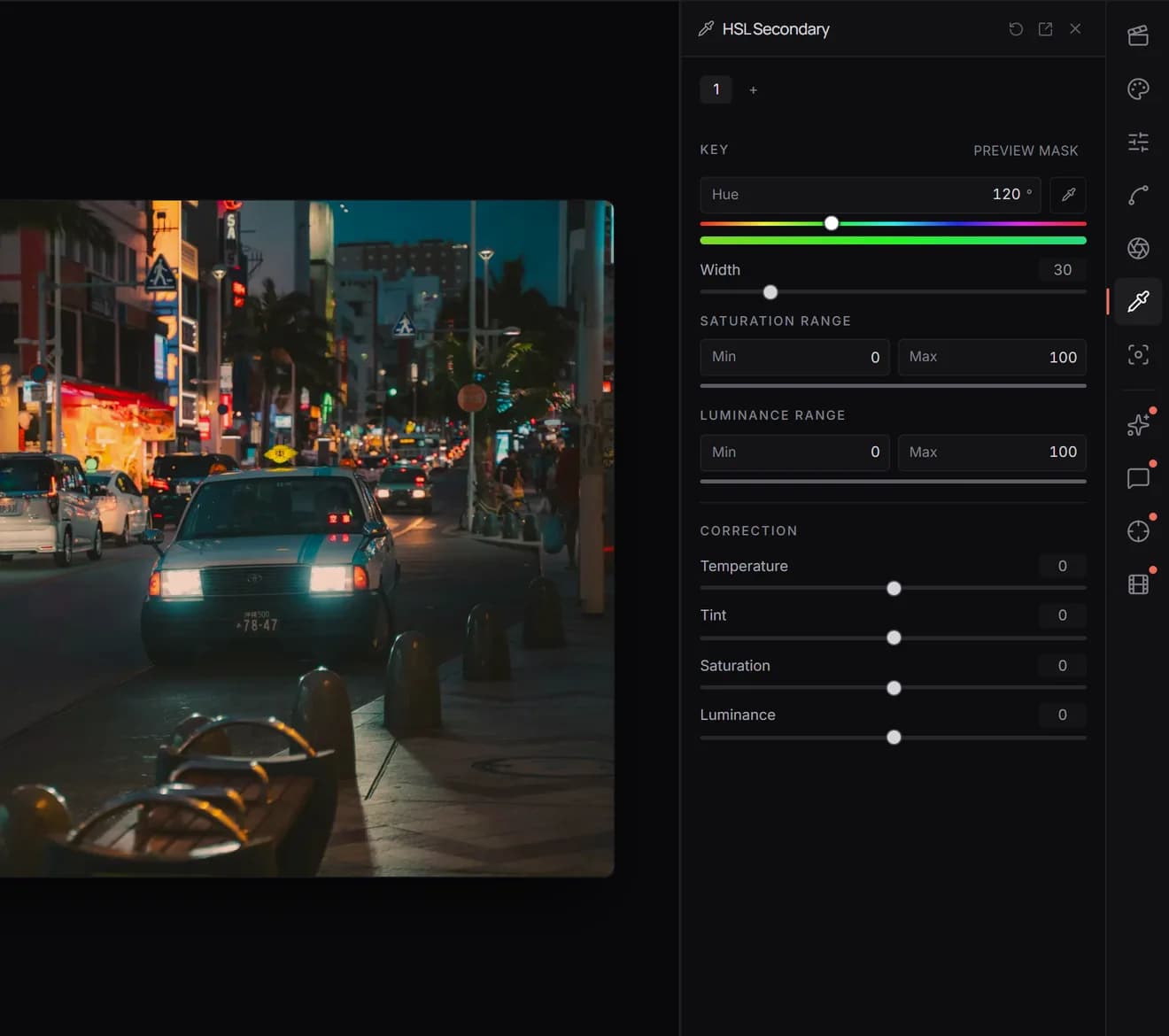
Choose the colour: Key
- Sample hue from canvas: click the eyedropper, then click the colour in your image. This is the easiest way to start.
- Hue centre and Width: the colour to select and how wide a band of neighbouring hues to include.
- Saturation Range: limit the selection to colours that are more or less intense. Raising the minimum leaves greys out.
- Luminance Range: limit the selection to darker or brighter areas.
Click Preview Mask to see exactly what's selected. Narrow the ranges until the mask covers only what you want.
Change it: Correction
- Temperature and Tint: shift the selected colour's hue.
- Saturation: make it more or less intense.
- Luminance: make it brighter or darker.
Several at once
You can add up to four secondaries, each with its own key and correction. A typical set: one for skin, one for sky, one for foliage.
Uses
- Even out skin: select the skin range, reduce Saturation slightly and warm it with Temperature.
- Deeper skies: select blue, lower Luminance and raise Saturation.
- Protect skin in a strong look: after a heavy teal grade, select the orange skin range and bring its saturation and luminance back.