 Luttie
sd card recovery for photographers and filmmakers
sd card not showing up, asking to be formatted, or full of photos and clips that won't open? what to do first, and how to get them back.
this post is sponsored by easeus and contains sponsored links to easeus data recovery wizard. the test results are my own.
sd card recovery works far more often than people expect: when a card stops showing up, asks to be formatted, or hands back photos that won't open, the files are usually still on it. stop using the card, don't format it, and run recovery software from a computer. that one rule decides whether the shoot comes back.
if you shoot for a living, or just shoot a lot, this is the guide to read before it happens: what to do in the first five minutes, why repairing the card before recovering from it gets you more back, how to fix photos and clips that recover but won't open, and what happened when i ran recovery on my own machine.
what happened when i tried it
i ran easeus data recovery wizard professional on my windows laptop, pointed it at the internal 475 gb ssd and pressed search for lost data.
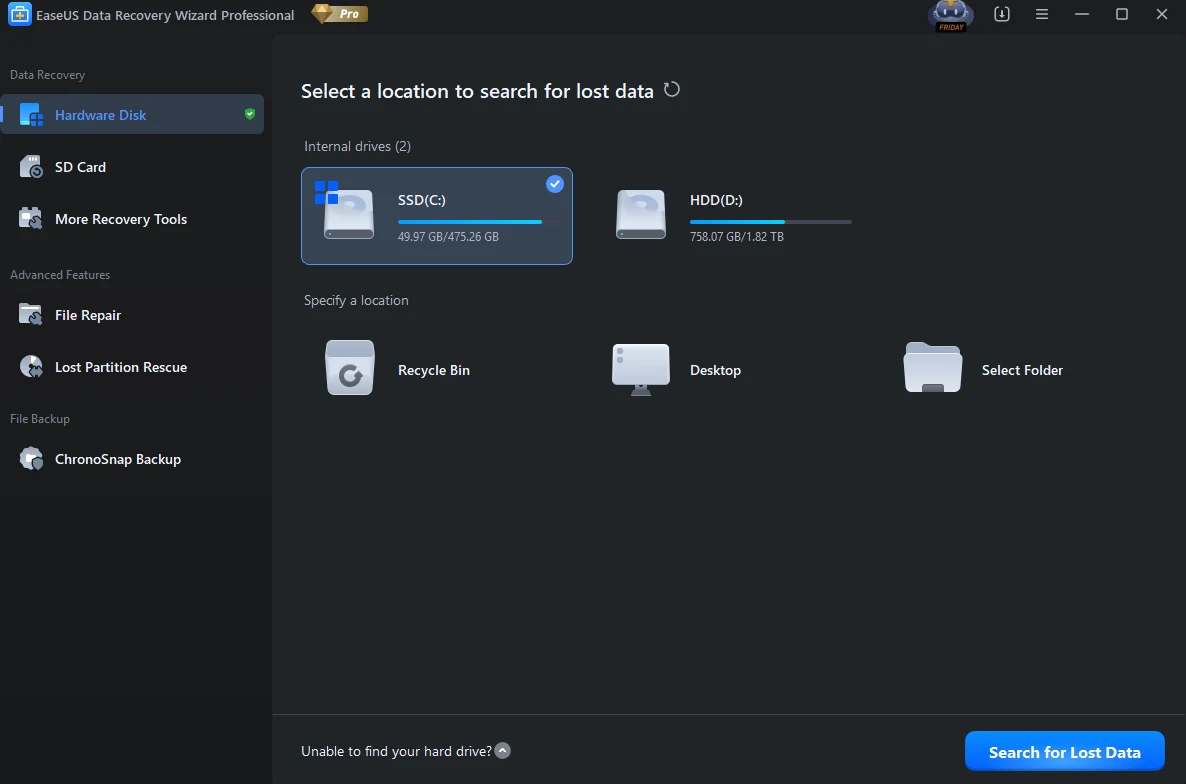
the scan finished with 2,631,779 files found, 464.70 gb in total: close to 500 gb of files i could get back. results come sorted by type as well as by folder. pictures alone were 33.7k files: 3.5k jpgs, 19.8k pngs, plus photoshop psds, illustrator files, exr renders and cinema 4d projects.
you don't recover all of that at once, and you wouldn't want to. the preview screen shows what's actually inside each lost file, so you can look through them and tick only what you want back. i picked out a few images and videos that way and got them back.
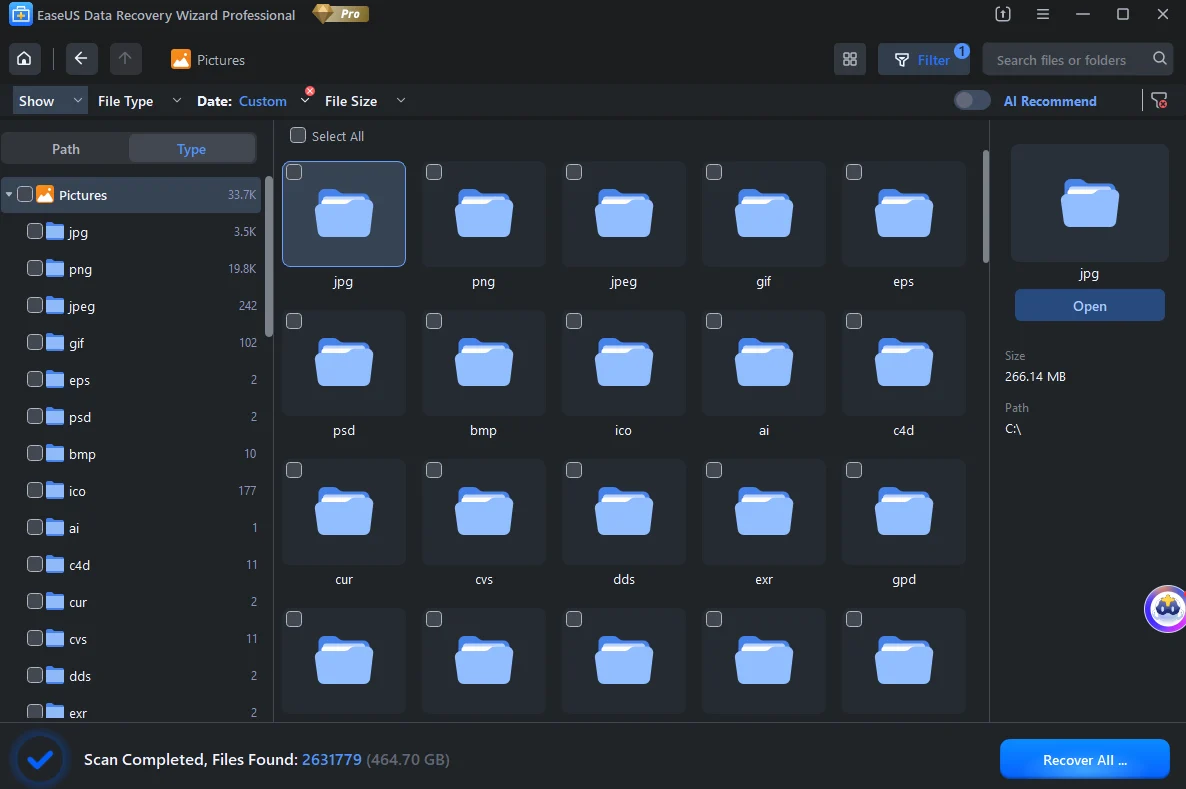
three things made a difference with that many files:
- filters. file type, date range and file size, plus a search box. filtering to the dates of a shoot and to raw or video files cuts millions of results down to the ones you came for.
- path and type views. if folder names survived you can browse the old folder tree; if they didn't, the type view still groups everything by format.
- preview before you recover. select a file and see its contents first, so you know it's intact, and only bring back the files you need.
if your work lives on cards, drives and exports, this is a tool to have installed before you need it. the same app covers internal drives, external drives and sd cards, and has separate tools for file repair and lost partitions.
the first five minutes
most failed recoveries are lost in the first few minutes, not by the software.
- stop shooting on the card. take it out of the camera or drone. every new photo or clip can overwrite something you're trying to save.
- don't format it. not in the camera, not on the computer. if windows says "you need to format the disk before you can use it", click cancel.
- don't run chkdsk or "scan and fix" yet. those tools repair the file system by throwing away entries they can't make sense of, and those entries can point to your files. recover first, repair the disk afterwards.
- use a card reader, not the camera. plug the card into a computer through a reader.
- save recovered files somewhere else. never back onto the same card.
sd card not showing up?
try a different reader and a different usb port before deciding the card is dead. cheap readers fail more often than cards do.
then, on windows, open disk management (right-click the start button, then disk management). it lists every drive windows can see, even ones without a drive letter (microsoft's guide).
- listed with a size but shown as raw, or with no file system: the file system is damaged. this is the most recoverable kind of failure.
- listed but with no drive letter: it may only need one. right-click it and choose "change drive letter and paths". that changes nothing on the card.
- not listed at all, on any reader or port: windows can't talk to it. if the card is physically damaged (cracked, bent, been in water), a recovery lab is the safer route.
corrupted sd card recovery: repair first
most sd card recovery software goes straight to a deep scan: it reads the card sector by sector and pulls out anything that looks like a file. that works, but it loses folder structure and file names, and it struggles with large files written in pieces, which is exactly what raw photos and 4k video are.
easeus takes a different order on sd cards. choose sd card in the sidebar and you get three tools, and the first one tries to fix the card before anything is recovered:
| tool | what it does | when it helps |
|---|---|---|
| sdr (sd card rescue) | repairs logical damage to the card and restores access | card not detected, raw, "you need to format", uninitialised |
| ssr (smartsector rebuild) | rebuilds fragmented photos at sector level, bypassing a damaged file system | photos recovered but won't open, or open half grey |
| dvr (deep video reconstruct) | reconstructs damaged video frame by frame, even without the file's header | clips that won't play, play black, or freeze |
if the card's file system can be repaired, every file comes back with its name, its folder and its pieces in the right order. the deep scan is the fallback for when it can't.
this works on logical damage: a corrupted file system, a bad format, an interrupted write. it can't bring back files that have since been overwritten, or fix a card that's physically broken. that's true of recovery in general, whoever makes the tool.
recover formatted sd card files
formatted the wrong card? a quick format (what cameras and computers do by default) only clears the index. the photos and clips stay on the card until something new is written over them. stop shooting on it, and a recovery scan will usually find most of the shoot.
the deep scan finds files by their contents rather than their names, so expect generic file names back. sort by type and date to find the shoot, and preview before recovering.
recover deleted photos from an sd card (when they won't open)
the most frustrating version: the recovery finds 400 files, and half of them won't open, or open with the bottom half grey.
it happens because cameras write a large file (a 50 mb raw, say) in chunks wherever there's space on the card. the file system remembers where those chunks went. when it's damaged, a tool that finds the start of a photo has to guess where the rest is, and a wrong guess gives you a broken image.
smartsector rebuild reassembles those fragments into photos that open. according to easeus it handles jpeg and the common raw formats, including canon cr2, nikon nef, fujifilm raf, olympus orf and dng.
corrupted video repair for camera and drone footage
a clip from a drone that lost power, a gopro on a dying battery, or a card pulled out mid-recording often looks fine in the file browser and then won't play. the frames were written, but the camera never got to write the index that tells a player how to read them.
- let the camera try first. gopro cameras can repair the last file themselves: put the card and a charged battery back in, power on, and follow the repair prompt if one appears. results are mixed, but it costs nothing.
- reconstruct the file. deep video reconstruct rebuilds the clip around the frames that survived, frame by frame. easeus says it works on footage from gopro and dji cameras and drones, in the usual containers, mp4 and mov among them.
step by step
- download data recovery wizard for windows or mac (windows 7 to 11, macos 10.9 onwards). install it on your computer, never on the card or drive you're recovering from.
- connect the card with a reader, open the app and choose sd card in the sidebar (or hardware disk for an internal or external drive).
- if the card is damaged, run sdr to repair it. if it isn't, or repair isn't possible, scan it.
- filter and preview what it found. use ssr for photos that don't preview properly and dvr for video that doesn't.
- recover to a different drive.
the scan and preview are free, so you can see whether your files are there before paying anything. the free version also recovers up to 2 gb on windows (500 mb as standard, the rest unlocked by sharing the app, per easeus). a card of raw files or 4k footage, or a drive like mine, needs the paid version.
after the recovery
once the files are safe on another drive, copy them somewhere else as well. then format the card in the camera, not on a computer, so it's set up exactly how that camera expects. if a card failed once with no obvious cause, retire it.
recovered footage grades like any other. drone clips shot in d-log m can go straight onto a dji d-log lut or into the drone grading workflow, and recovered dng files open in the luttie editor like the originals (how to edit dji dng files).
how to not need any of this
- back up the same day. a card is a place to shoot, not a place to keep.
- use more than one card on a shoot or a trip, so one failure doesn't take everything.
- don't shoot on a nearly flat battery. most corrupted clips are clips that never finished writing.
- wait for the write light before pulling a card or switching off.
- format in the camera each time you reuse a card, rather than deleting files on a computer.
- keep a recovery tool installed. the worst time to research one is the day after a card dies.